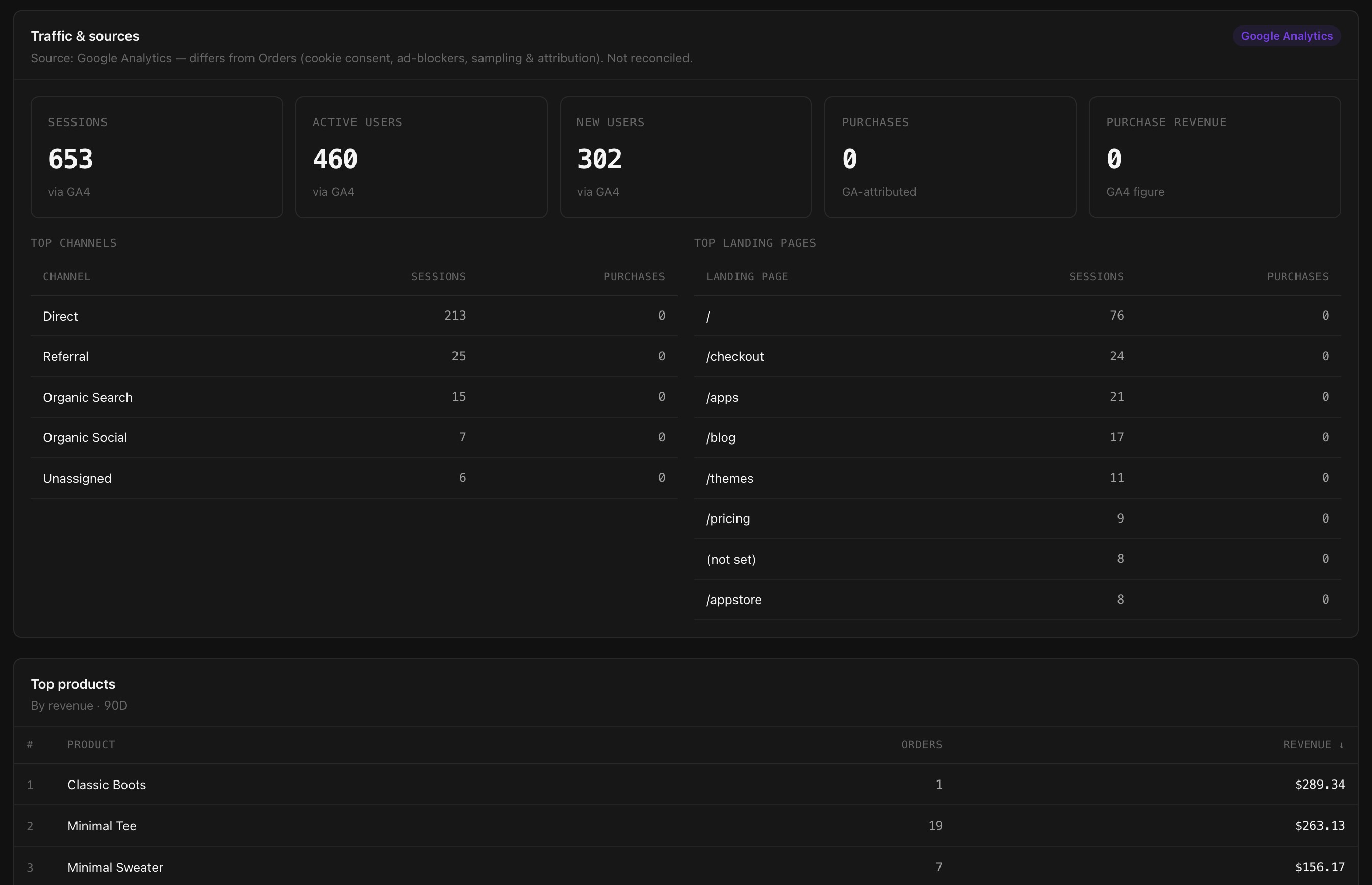
You already know how many orders you took last week. But do you know where those shoppers actually came from — a search, a social post, an email, a link someone shared? Cartly's own analytics dashboard has always tracked what happens on your store: views, add-to-carts, checkouts, purchases. It has never told you the other half of the story — where the traffic behind those numbers originated. This release closes that gap by bringing Google Analytics 4 data directly into your admin.
Know where your shoppers come from
Connect a Google Analytics 4 property and your Analytics page gains a second section: daily sessions, active users, and new users, alongside a Top channels breakdown (organic search, paid social, direct, referral, email, and so on) and a Top landing pages table showing exactly which URLs are pulling people in. It's the acquisition picture that complements the conversion picture you already have — now both live in one place, without opening a second tab.
How it works
The Google Analytics lens is a straightforward App Store install. Once it's connected to your GA4 property, Cartly pulls in the standard traffic metrics on a schedule and renders them right on your existing Analytics page — clearly labeled as coming from Google Analytics, sitting beside the orders and funnel data that has always come from Cartly itself. You get Top channels and Top landing pages without having to leave your admin or learn a new reporting tool.
Why we don't merge the two
It would be tempting to blend Google Analytics sessions with Cartly's own funnel into one unified number. We deliberately didn't. Cookie consent choices, ad blockers, and each system's own attribution model mean session counts and conversion counts are measured differently and will never reconcile perfectly — and a single blended metric that quietly averages away that disagreement is worse than two honest ones. So the two lenses stay separate and clearly source-labeled: your orders and funnel are the numbers Cartly itself recorded from real checkouts, and your Google Analytics section is exactly what Google Analytics reports, no more and no less. You can look at both and draw your own conclusions instead of trusting a number that hides how it was built.
Low-friction setup
There's no developer work and nothing to build. Cartly connects to every merchant's GA4 property through a single Cartly-owned service account — so setup is two copy-paste steps: in Google Analytics, add the Cartly service-account email (shown right on the app's settings page) as a Viewer on your property, then copy your numeric Property ID from GA4's Admin → Property details and paste it into the app. Click Test Connection and you're done. See Connecting Google Analytics to your store for the full walkthrough, including what to expect on your first sync.
Pairs naturally with Agent Commerce
Traffic insight is one half of understanding your audience; being findable by that audience is the other. Our previous release shipped Agent Commerce, which makes every Cartly storefront readable by AI shopping agents — the assistants an increasing number of shoppers now ask to find and compare products for them. Together, the two give you a fuller picture: Google Analytics tells you who's finding your store and how, while Agent Commerce makes sure AI-driven shoppers can find it in the first place.
Getting started
Install Google Analytics from the App Store, add the service-account email as a Viewer on your GA4 property, and paste in your Property ID. Full setup steps are in Connecting Google Analytics to your store. See the full changelog for everything else in this release.